- #Lab/>
- 1. Setting Up the Google Workspace (Source) Environment
- Step 1.1: Sign Up for a Google Workspace Trial
- Open
 Google Workspace Free Trial/>.
 - Click Get Started and provide the following details:
- Business Name: Enter any test name (e.g., "TestLab Inc.").
- Number of Employees: Choose Just you or 2-9 employees.
- Region: Select your country.
- Click Next and enter a Test Admin Email (e.g.,
adminmal@learn-hub.info). - Create a Google Workspace Admin Account with:
- Username:
adminmal@learn-hub.info - Password: P@ssw0rd.
Test-Out the workspace.
- Step 1.2: Create Test Users & Groups
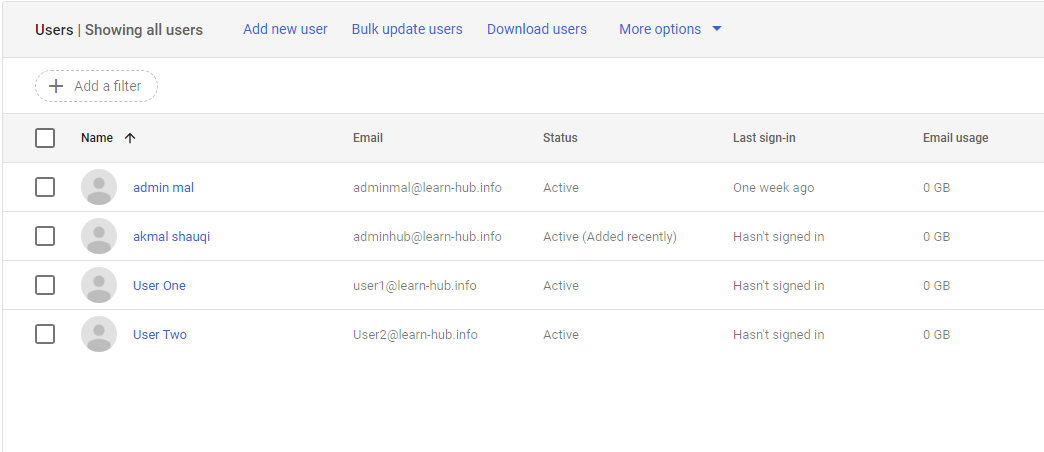
- In Google Admin Console, go to Directory → Users.
- Click Add User and create at least 3 test users, for example:
- User 1:
adminhub@learn-hub.info - User 2:
user1@learn-hub.info - User 3:
user2@learn-hub.info
- Click Save and repeat for each user.
📸 Screenshot Tip
- Step 1.3: Enable Google Drive, Gmail, and Google Sites
- In Google Admin, go to Apps → Google Workspace.
- Ensure the following services are enabled:
- Gmail (for email migration).
- Drive and Docs (for file migration).
- Google Sites (if testing site migration).
- Click Save.
- 2. Setting Up the Microsoft 365 (Destination) Environment
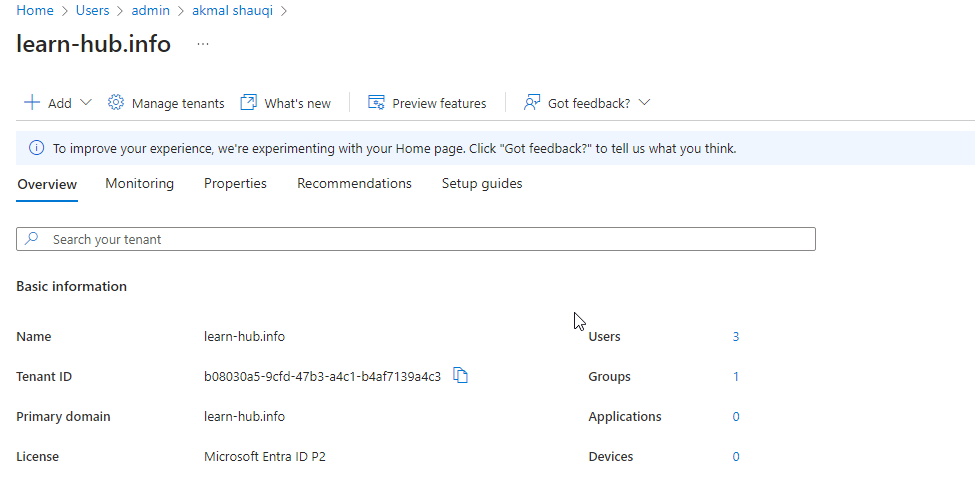
- Step 2.1: Get a Free Microsoft 365 Test Environment
- Choose Microsoft 365 any free trial subscription (includes Exchange, SharePoint, and OneDrive).
- Provide test tenant details:
- Tenant Name: Choose a test domain (e.g.,
learn-hub.info). - Admin Username:
adminhub@learn-hub.info. - Admin Password: Malaysia@8991.
- 📸 Screenshot:
- Step 2.2: Create Test Users in Microsoft 365
- Log into the Microsoft 365 Admin Center (
 admin.microsoft.com/>).
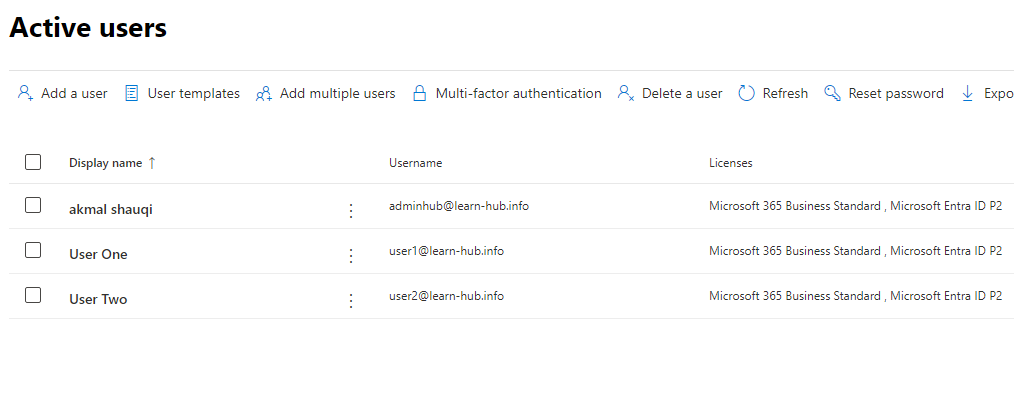
 - Go to Users → Active Users → Click Add User.
- Create at least 3 test users, matching Google users:
- User 1:
user1@learn-hub.info - User 2:
user2@learn-hub.info - User 3: (
adminhub@learn-hub.info, GlobalAdmin)
- Assign each user an Exchange Online, SharePoint, and OneDrive license.
- Click Save.
📸 Screenshot:
- 3. Register for Cloudiway Free Trial
- Step 3.1: Sign Up for Cloudiway
- Open
 Cloudiway Migration/>.
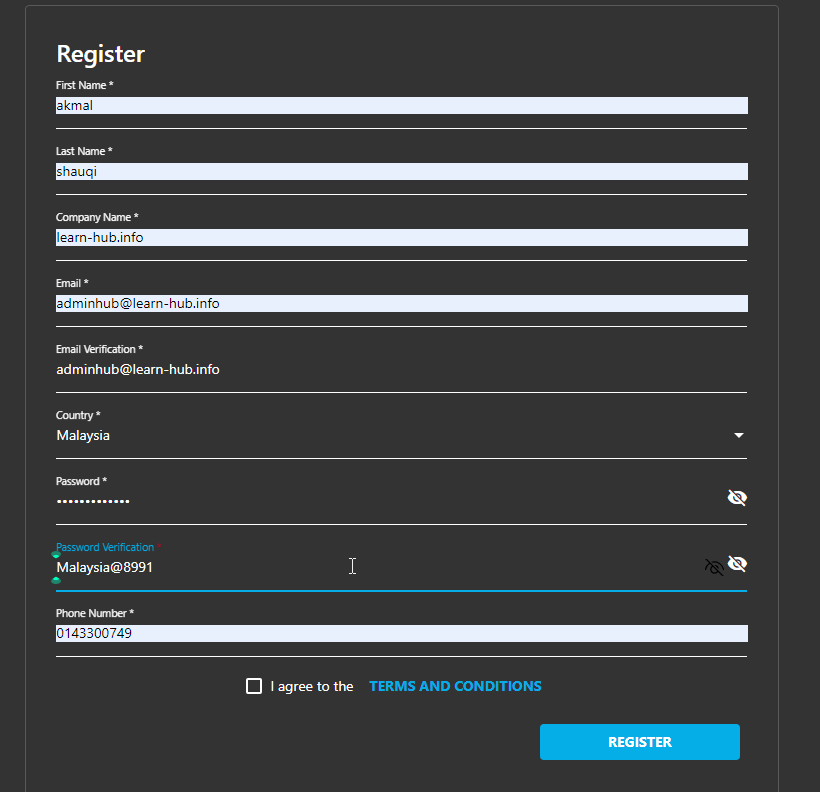
 - Click Free Trial → Enter your details and create an account.
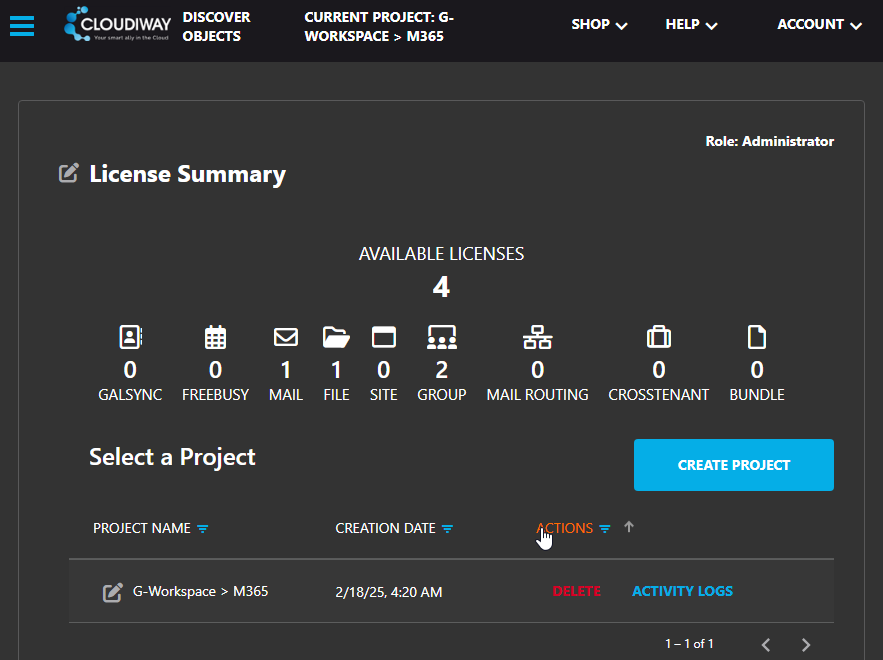
- Log into Cloudiway Admin Panel.
📸 Screenshot:
- 4. Configure API Access/Connector (Google & Microsoft) In Cloudiway
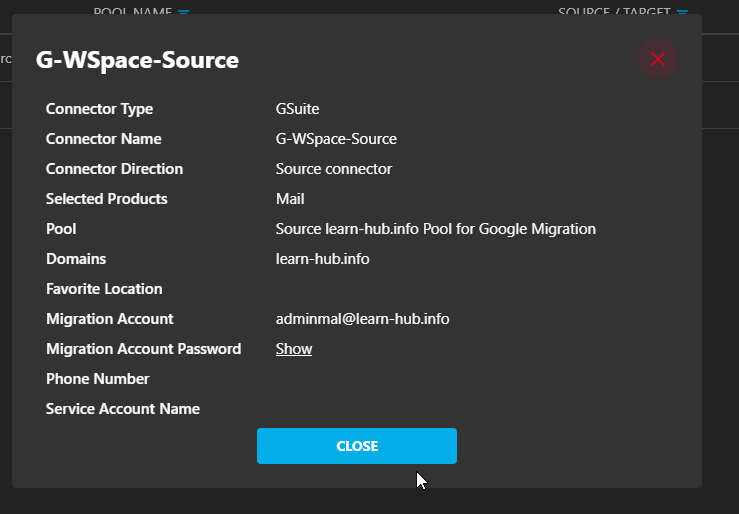
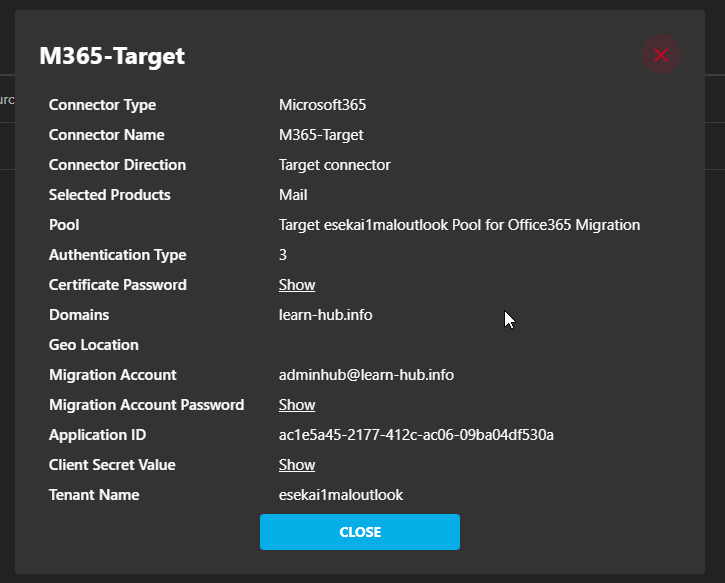
- Step 4.1: Set Up Connector Source & Target
- Step 4.2: Set Up Microsoft API Access for Cloudiway
- Open
 Azure Portal/>.
 - Go to Azure Active Directory → App Registrations → Click New Registration.
- Set:
- Name: CloudiwayMigration
- Supported Account Type: Single Tenant
- Redirect URI: Copy from Cloudiway settings.
- Click Register → Go to Certificates & Secrets → New Client Secret.
- Copy Client ID & Secret and enter them in Cloudiway.
- 5. Perform the Migration Tests
- Step 5.1: Email Migration (Gmail → Exchange Online)
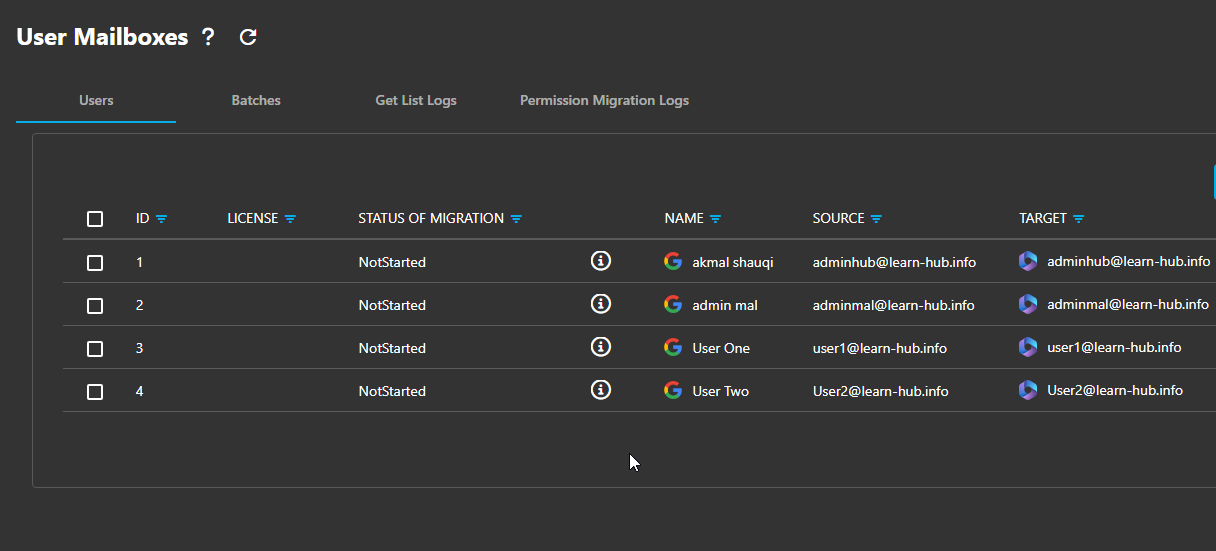
- In Cloudiway, go to User Mailbox → Select Single User / Create a Batch 4 Multiple Users.
- Select:
- User 1:
user1@learn-hub.info - Click the Migration Tab > Dropdown select Start
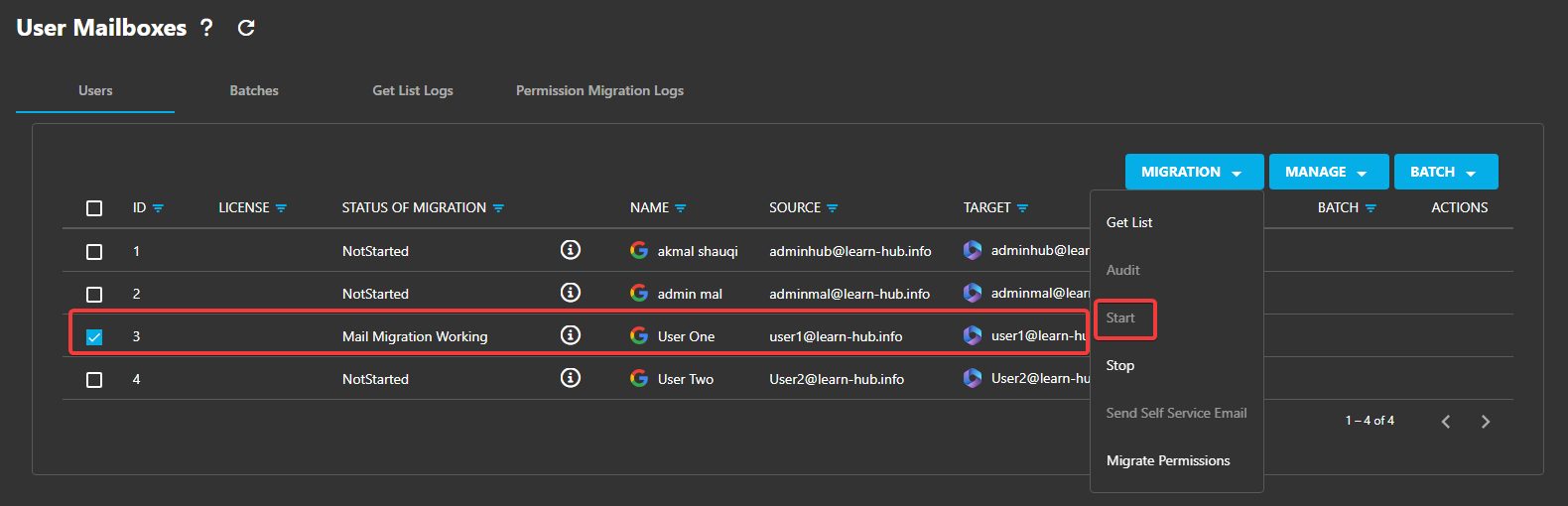
- Click Start Migration.
- For logs:
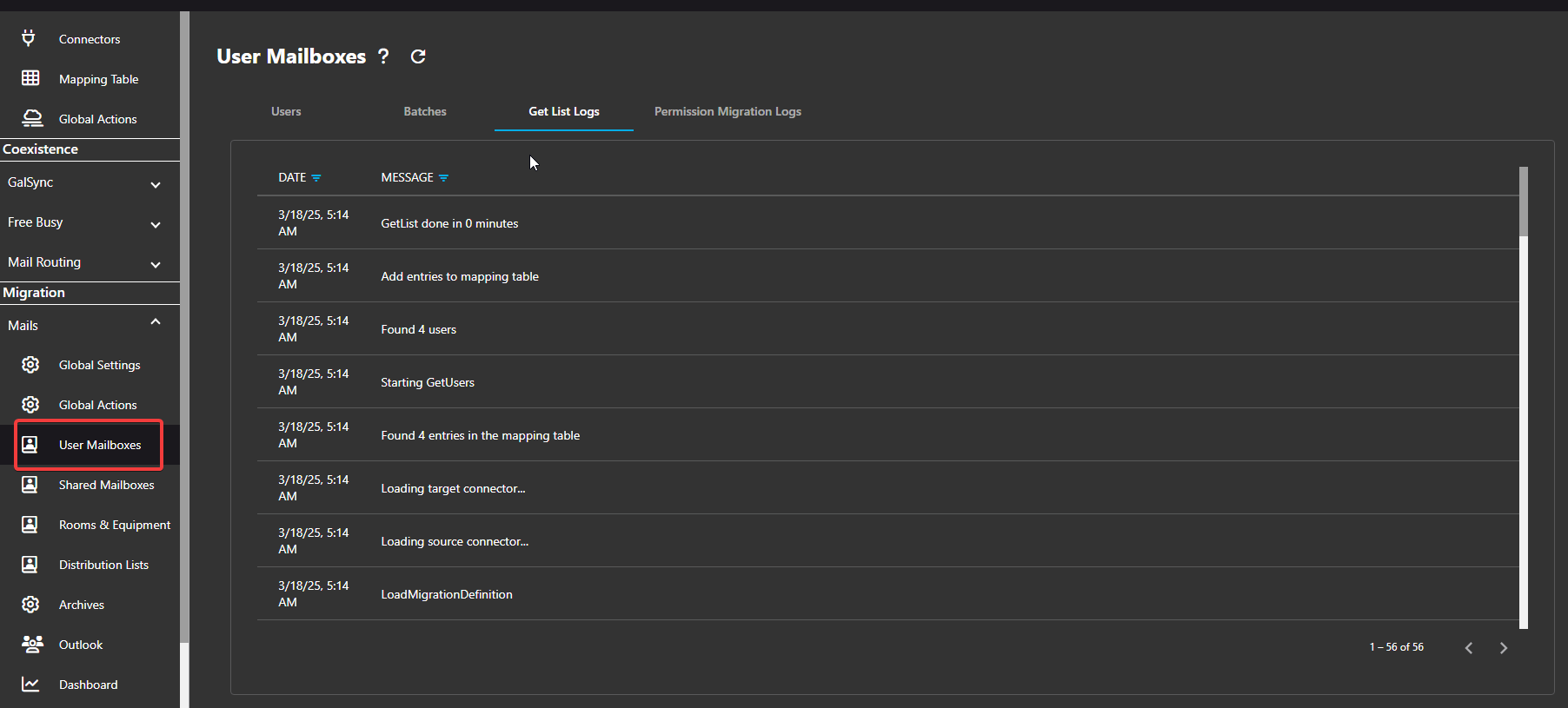
- Link & Reference
 How To Get Google Feeds: Configure Your Google Connector/>
 App-only authentication in Exchange Online PowerShell and Security & Compliance PowerShell | Microsoft Learn/>